
Download 4Musics MP3 Bitrate Changer – Fast, Free MP3 Frequency Converter
Overview
4Musics MP3 Bitrate Changer is a lightweight Windows utility that lets you modify the bitrate of your MP3 files with just a right‑click. Whether you are looking to shrink a large music collection for a portable device, or you need to boost the quality of a low‑bitrate track for a podcast, this tool offers a quick, secure, and free solution. The program works by re‑encoding the audio at the frequency you specify, ranging from 64 kbps up to 320 kbps.
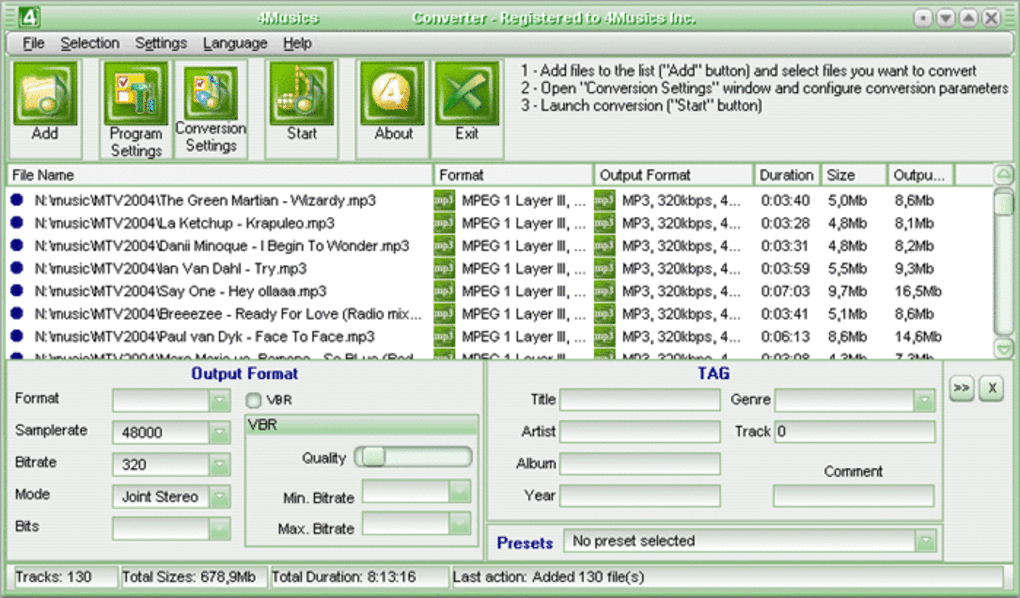
While higher bitrates do provide better fidelity, the software also warns users that beyond 192 kbps the audible improvements become marginal, while file sizes grow considerably. This balance of speed and flexibility makes the application ideal for both casual listeners and audio professionals who need to batch‑process large libraries. In addition to bitrate conversion, 4Musics includes a built‑in label editor that lets you embed metadata such as song title, artist, album, genre, and year directly into the file.
The batch conversion engine runs silently in the background, allowing you to continue working on other tasks while the software processes dozens of tracks simultaneously. Its intuitive right‑click context menu eliminates the need for complex settings pages, and the interface stays out of the way once the conversion starts. Overall, 4Musics MP3 Bitrate Changer delivers a focused, no‑frills experience that addresses a single, common need: changing MP3 frequency quickly and safely.
Key Features
- One‑click bitrate change directly from the Windows Explorer context menu.
- Supports a wide range of bitrates: 64 kbps, 96 kbps, 128 kbps, 160 kbps, 192 kbps, 256 kbps, and 320 kbps.
- Batch processing – add an entire folder and let the software convert all files automatically.
- Built‑in label publishing tool for editing ID3 tags (title, artist, album, genre, year, track number).
- Low‑resource footprint – runs silently in the background without slowing down your PC.
- Free to download and use for personal and commercial projects.
- Secure conversion – files are processed locally; no data is uploaded to the cloud.
- Automatic file naming options to preserve original filenames or add custom prefixes/suffixes.
- Supports drag‑and‑drop from any folder or desktop shortcut.
- Regular updates that improve compatibility with newer Windows versions.
Installation & Usage Instructions
Getting started with 4Musics MP3 Bitrate Changer is straightforward. First, download the installer from the official website. The file is a small .exe package (approximately 4 MB), ensuring a fast download even on slower connections. Run the installer and follow the on‑screen prompts: accept the license agreement, choose an installation folder (the default location works for most users), and click “Install”. The setup completes within a minute and automatically registers the program’s context‑menu extension with Windows Explorer.
Once installed, you can change a file’s bitrate by right‑clicking any MP3 file, navigating to the “4Musics” submenu, and selecting the desired bitrate. The software creates a temporary copy, re‑encodes it, and then replaces the original file (or saves a new copy if you enable the “keep original” option). For batch conversions, select multiple files or an entire folder, right‑click, and choose “Convert to…”. A progress window shows the status of each file, and you can pause or cancel the operation at any time.
The built‑in label editor is accessed via the same context menu: choose “Edit Tags” to open a small dialog where you can fill in or modify metadata fields. After editing, click “Save” and the ID3 tags are written directly into the MP3 file. If you need to convert files on a schedule, the program also offers a command‑line interface that can be scripted with Windows Task Scheduler for automated nightly conversions.
Compatibility, Pros & Cons
4Musics MP3 Bitrate Changer is built exclusively for Windows 10, Windows 11, and the legacy Windows 7/8 platforms (32‑bit and 64‑bit). The installer detects the appropriate system architecture automatically, so you do not need to choose a separate version. While there is currently no native macOS, Linux, Android, or iOS version, the program can be run on those systems through a Windows virtual machine or compatibility layer such as Wine, though official support is limited to Windows.
Pros
- Fast, one‑click bitrate changes without opening a separate application.
- Batch conversion saves hours when working with large music libraries.
- Free for both personal and commercial use.
- Integrated ID3 tag editor eliminates the need for third‑party metadata tools.
- Low system impact – runs quietly in the background.
- Secure local processing; no internet upload of audio files.
Cons
- Windows‑only; no native macOS, Linux, Android, or iOS client.
- Limited to MP3 format; does not support AAC, FLAC, or other popular codecs.
- Advanced audio settings (e.g., VBR, joint stereo) are not exposed in the UI.
- No built‑in audio preview – you must listen to the file after conversion.
- Free version shows a subtle “Powered by 4Musics” watermark in the progress window.
Overall, 4Musics MP3 Bitrate Changer earns a solid four‑star rating for its speed, simplicity, and reliable batch processing. While it could benefit from broader format support and a cross‑platform release, its core mission—to change MP3 bitrates quickly and securely—gets the job done without unnecessary bloat.
Frequently Asked Questions
Can I convert lossless formats like FLAC with 4Musics?
No. The current version only supports MP3 files. If you need to convert FLAC or other lossless formats, you’ll need a separate converter before using 4Musics for bitrate adjustment.
Is the software really free for commercial use?
Yes. 4Musics MP3 Bitrate Changer is released under a free‑to‑use license that permits both personal and commercial applications without any hidden fees.
How does the batch conversion process affect my PC’s performance?
The program is designed to use minimal CPU and memory. During large batch jobs, you may notice a modest increase in disk activity, but the impact on overall system responsiveness is generally low.
Can I keep the original files after conversion?
Yes. In the settings menu you can enable “Preserve original files,” which makes the software save the newly encoded MP3 with a suffix (e.g., _128kbps) while leaving the source untouched.
Is there any risk of quality loss when lowering the bitrate?
Lowering the bitrate does result in some quality degradation, especially below 96 kbps. However, the software uses the LAME encoder, which is widely regarded as one of the best MP3 encoders, so the loss is as minimal as the chosen bitrate allows.
Conclusion & Call to Action
If you regularly need to shrink music files for portable devices or standardize the quality of a large MP3 collection, 4Musics MP3 Bitrate Changer provides a fast, free, and secure solution that integrates directly into Windows Explorer. Its batch processing, built‑in tag editor, and simple right‑click workflow eliminate the hassle of opening multiple programs. While it lacks cross‑platform support and broader codec handling, the focused feature set makes it an excellent choice for Windows users who value speed and simplicity. Ready to streamline your music library? Download 4Musics MP3 Bitrate Changer now and start converting with a single click.







